What the app does
Shoppers put a set together on the product page: a base item, then a number of parts from the products or colours you allow, such as “a brush holder plus any three of 27 liner colours”, a tea sampler, a sock trio. Every chosen part goes into the cart as one of your real products, so inventory is deducted per colour and your reports stay correct.
On top of that the app can grant a set discount that only applies once the set is complete, and run code gifts: a creator shares a code, and whoever enters it gets a gift in the cart, secured by a real Shopify discount code.
The storefront part is a theme app extension. It reads your setup straight from your shop and talks only to Shopify's own cart. It never contacts our servers.
Before you start
- The products you offer as parts have to be active and published to the Online Store sales channel. Anything else the storefront cannot load.
- Colours as variants or as products. Both work: a step can offer the variants of one product (“Liner, 27 colours”) or all products of a collection (when every lipstick is its own product).
- Your theme needs nothing but the app embed switched on once. No code changes.
Quick start
- Create a bundle. Open the app and click Create bundle. Its name also becomes the title of the set product in your store.
- Choose the base item. On the Builder tab, pick a product with Choose (or enter its handle) and click Check. The app confirms how many variants it found and whether they have their own images.
- Add a selection step. Give it a heading such as “Pick 3 liners”, set How many pieces are picked and point it at a product or collection.
- Create the product right in the editor. At the top of the bundle, under Set product in your store, click Save & publish. The app saves the bundle, creates the set product, publishes it to the Online Store and, if the bundle uses the app's discount, activates that too. To check it first, use Create as draft.
- Switch on the app embed once. On first open the app shows Setup. Click Enable the app embed in your theme: the theme editor opens at the app embeds. Switch Bundle Builder on and click Save. Back in the app, the step shows a green check. Setup in the app menu shows this status any time.
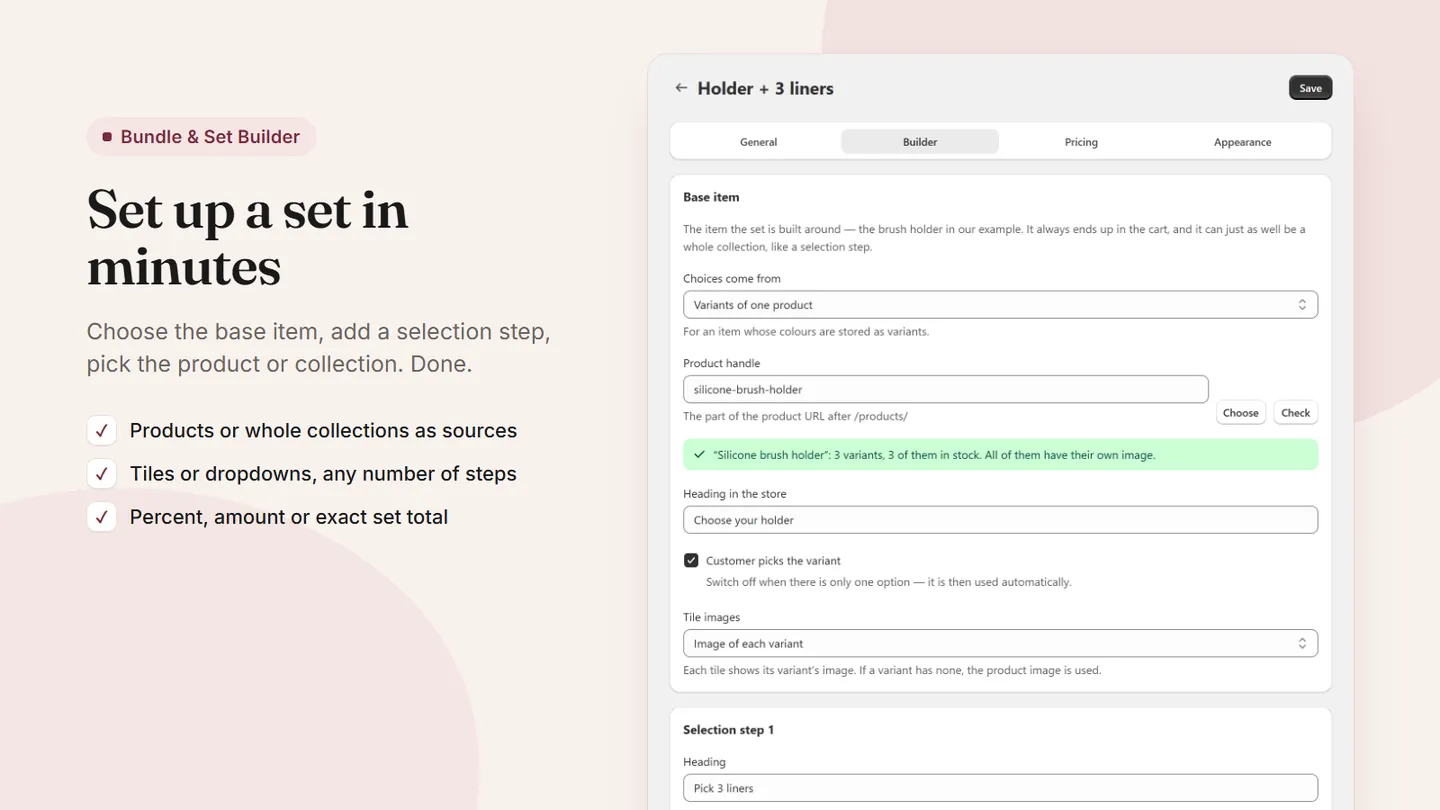
Setting up a bundle
A bundle has four tabs: General (name, description, on/off), Builder (base item and selection steps), Pricing and Appearance. Save stores the bundle; the overview shows whether it is ready and what is still missing.
Base item
The item the set is built around, such as a holder, a box or a gift bag. It always ends up in the cart. Choices come from either Variants of one product or Products in a collection. Switch off Customer picks the variant when there is only one option; it is then used automatically.
Selection steps
Each step is one choice the shopper makes, for example “three colours”. A bundle can have as many steps as your plan allows.
- How many: the number of pieces picked in this step.
- Colour tiles or Dropdown: tiles show an image per choice, a dropdown saves space.
- Same choice allowed more than once: switch off if each colour may appear only once per set.
- Show names under the tiles: leave off when the images already carry the name; the name then appears on hover.
- Tile images: the variant's own image, always the product image, or names only.
- Short form for the cart: the label on the cart line, for example “Liner 1: Grey”.
A collection used as a source provides up to 250 products. A product used as a source offers all of its variants.
Appearance
- Button label: only used when the theme has no buy button of its own.
- Message after adding to cart and Go straight to the cart.
- Product image follows the chosen colour: swaps the large product image for the colour picked last. If the configurator cannot find the theme's gallery, the image simply stays.
Pricing modes
Three questions decide everything: what ends up in the cart, what determines the price, and whether inventory is deducted for the parts. Pricing & discounts explained in the app walks through the same examples with your own currency.
Sum of all chosen parts
The base item and every chosen part enter the cart as their own line. The shopper pays the sum, inventory for each part is deducted, and if a part is sold out Shopify prevents the order by itself. Combine it with a set discount to reach a round price.
Set product only in the cart
A single line carries the price; the chosen parts are attached to it as text, visible on the invoice and the packing slip. The price is exact, but because the parts are not in the cart, Shopify does not deduct their inventory. Fine for a limited run with plenty of stock, not for permanent use.
The set product's price applies, the choices are free
Both at once: the price sits on the set product, the parts are still in the cart and are discounted to zero. Exact price and correct inventory. This mode needs the app's set discount.
Set discounts
Under Who grants the discount? there are two ways, and the difference matters.
The app (recommended). The app creates an automatic discount in Shopify that checks the cart at checkout, server-side: it only applies when every part of the set is there. Remove one and it is gone. It can be a Percentage off the set, a Fixed amount off, or Set costs this in total (an exact total, whatever parts are chosen). Save & publish in the bundle activates it; after changing steps or values, click Save & update product so Shopify gets the new rule.
A discount I create myself in the Shopify admin. An ordinary automatic discount that is entirely yours; the app only uses it to show the price. It applies to any cart that meets its condition, also one assembled without the configurator, and Shopify only applies it in the cart. Use Note below the total to tell shoppers. Buy X get Y with the base item as the condition is the tighter choice; Amount off products with a minimum quantity only counts items, not which ones.
Code gifts
A promotion is a code plus a gift. When a shopper enters the code in the cart or arrives through a link carrying it, the store adds the gift by itself, and a real Shopify discount code brings it to zero. The typical case: an influencer gives their followers a code, and everyone who orders above a minimum gets a small extra.
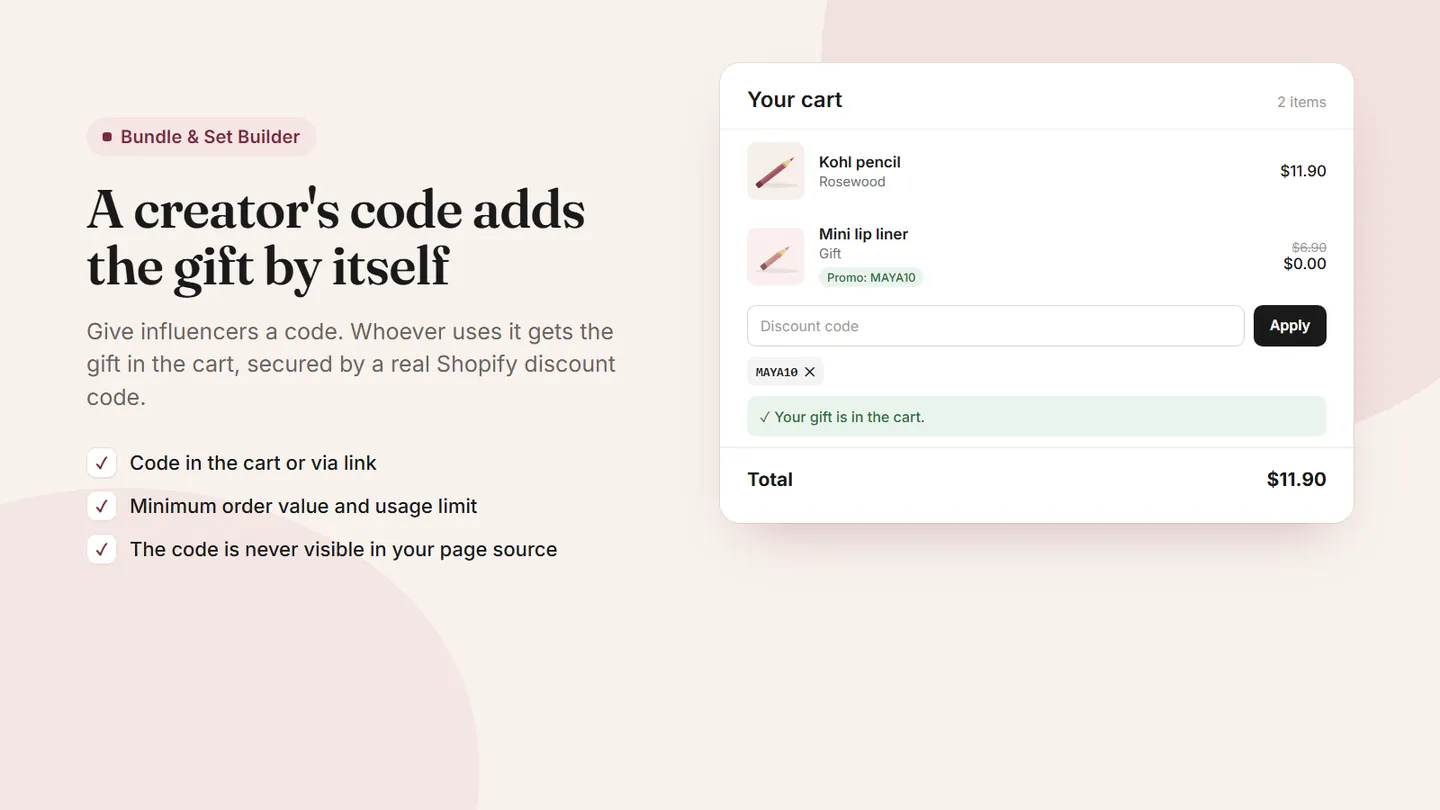
Creating a promotion
- In the app menu, open Promotions & gifts, then click Create promotion.
- Enter a Name of the promotion (only for you) and the Promo code. Upper or lower case makes no difference.
- Pick the gift with Choose product and its Variant. The gift keeps its normal price and has to be published to the Online Store; only the discount code makes it free.
- Optional: a Minimum order value (the cart without the gift) and Redeemable at most (in total; each customer can redeem once anyway).
- Switch Promotion is live on and click Create in Shopify. Without this click the code does not exist in Shopify. After later changes, click Update in Shopify.
The first promotion also creates a collection named “All products (Bundle Builder)” (in the language of your admin). Shopify requires a collection as the buy condition for this discount type; it does not need to be published and can simply stay.
The code is not in your page source. The storefront only receives a checksum of it. Nobody finds it by looking.
What happens in the cart
- Code field. Own code field in the cart decides whether the app shows a field: Only if the theme has none (default), Always, or Never, the code is entered elsewhere, for example in your theme's own discount field or through the link.
- Below the minimum. The gift is only added once the minimum is reached, so it never costs anything. The cart tells the shopper how much is still missing.
- Once the minimum is reached: Add the gift automatically or The code has to be entered again.
- When the customer removes the campaign code: The code cannot be removed while the gift is in the cart, or The gift is removed as well. Either way the gift is never left in the cart at full price.
- If the shopper removes the gift herself, it stays out.
Promotion link
Every promotion has a ready-made link such as https://your-store.com/?gift=MAYA10.
Whoever opens it gets the gift without typing. Under Where the link leads you can switch the
link to an unpublished theme to try a promotion before it goes live; that preview link only works
for people with access to your Shopify admin.
Theme editor settings
In the theme editor under App embeds → Bundle Builder:
- Show my own add-to-cart button: normally off; the theme's buy button adds the set.
- Accent colour and Colour of the name label.
- Show total price and Show the set price from the start.
- Hide the theme's price: recommended, otherwise two prices sit on the page. If you hide it, fill in Tax note below the price; in many countries that note is required.
- Discount code field in the cart: a field for any code, also without a promotion.
- Gift campaigns in this theme: switch promotions off per theme, for example to test on a theme copy first.
Languages and currency
The app itself is available in English, German, French and Spanish and follows your Shopify admin language; you can switch it under Settings in the app menu. The texts shoppers see come from your store's language (English, German, French and Spanish are built in) and from the headings and labels you enter per bundle and promotion. Amounts are shown and entered in your store's currency.
Plans
Plans are billed through Shopify. You can switch up or down at any time with Plan: … at the top of the app; no need to contact us or reinstall.
- Free: 1 set with one selection step, works with your own Shopify discounts, 1 live code gift.
- Growth: up to 5 sets, unlimited steps, the app's set discount by percent or amount, unlimited code gifts. 14-day free trial.
- Pro: unlimited sets and steps, set discount to an exact total, unlimited code gifts, priority email support. 14-day free trial.
No revenue cap and no per-order fees on any plan. Current prices are shown in the Shopify App Store and on the plan page. After switching to a smaller plan your current setup keeps running in the store. To save changes, first bring it within the new plan's limits. The app tells you what is over the limit.
If something does not work
The configurator does not appear on the product page
Three things have to be true: the app embed is switched on in your live theme, the product was created by the app (Set product in your store at the top of the bundle), and it is published to the Online Store. The editor and the overview show the state of each bundle.
A part shows as unavailable
Products used as parts have to be active and published to the Online Store. To keep sold-out colours selectable, enable “Continue selling when out of stock” on the variant.
The cart charges full price for the set
The app's set discount has to be active. Save & publish in the bundle activates it; the overview shows a warning while it is missing.
The gift is not added
Check that the promotion is live and was created in Shopify, that the gift is published to the Online Store, and that the cart has reached the minimum order value. If the theme has its own discount field, the code goes there.
There are two discount fields in the cart
Set Own code field in the cart to Only if the theme has none or Never, and switch off Discount code field in the cart in the theme editor.
Uninstalling
When you uninstall the app, the configurator and the code field disappear from your store at once, and the app's set discount stops applying. The set products, the discount codes of your promotions and the collection “All products (Bundle Builder)” stay as ordinary Shopify items. Delete them in the Shopify admin if you no longer need them. When Shopify sends its deletion request for your store (48 hours after uninstalling), we delete our store record; see the privacy policy.